
meddevo Login and Security Improvements
meddevo Authentication Migration: Full User Guide
In October 2025 meddevo’s authentication system was upgraded to make login simpler and more secure for everyone. This article explains the new authentication options, provides background information on the changes, and answers common questions.
1. Password Setup for New Users
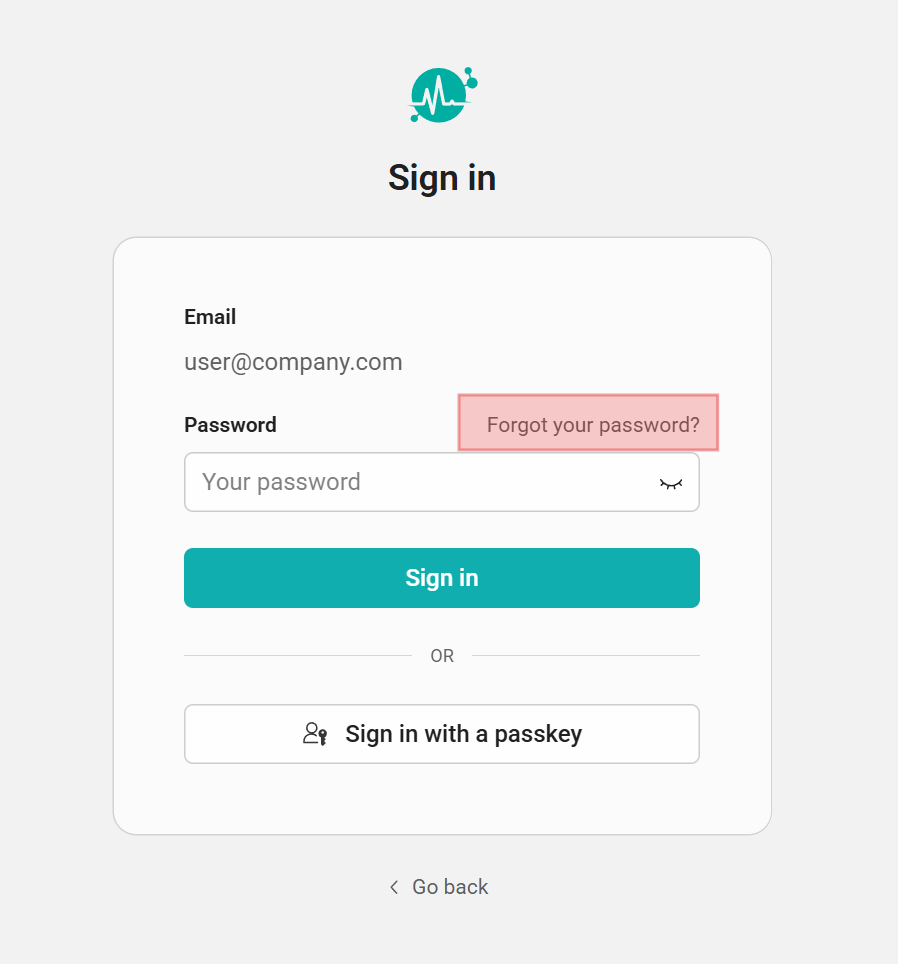
When you invite new users to meddevo, they must set their own password before logging in for the first time. The process is as follows:
- Enter their email address on the login page.
- Click the “Forgot your password?” link.
- Follow the instructions in the email to set a new password.
If an existing user forgets their password, the same process can be used to reset it at any time.
2. New Login Experience
There are two secure ways to log in to meddevo:
- With your company credentials (SSO): If your organisation is set up for Single Sign-On, just click the SSO button and log in with your usual work email and company password (currently Azure AD and Google Workspace are supported).
- With email and password: If you do not use SSO, continue to sign in with your meddevo-managed email address and your newly reset password.
Unsure which applies to you? If in doubt, try your email first and follow on-screen prompts or check with your workspace admin.
3. Set Up Your Workflow PIN
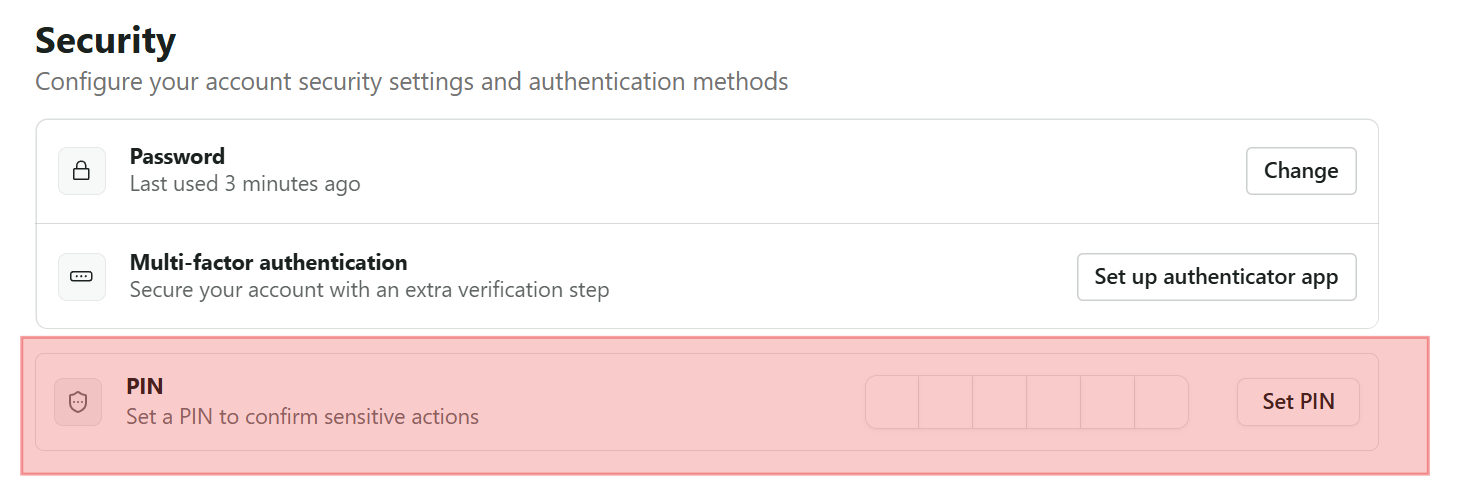
If you use meddevo’s workflow features (such as approving documents), you must set a secure PIN in your user profile. This PIN replaces your password for workflow authorisations - improving both security and privacy. This step is needed, as we can't verify the passwords of users using SSO.
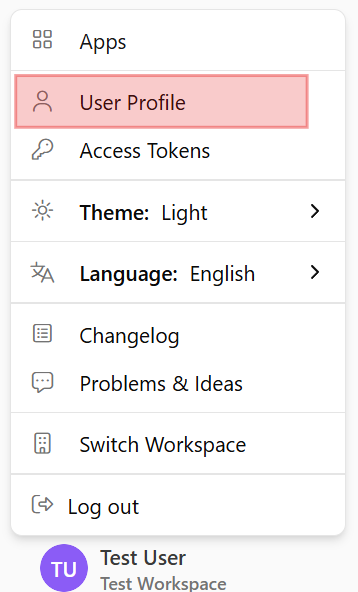
- Visit your profile page after logging in.
- Under "Security" you'll find the option to set a PIN. Set a PIN an click "Set PIN".
- Keep this PIN private (do not share it with others).
4. Multi-Factor Authentication (MFA)
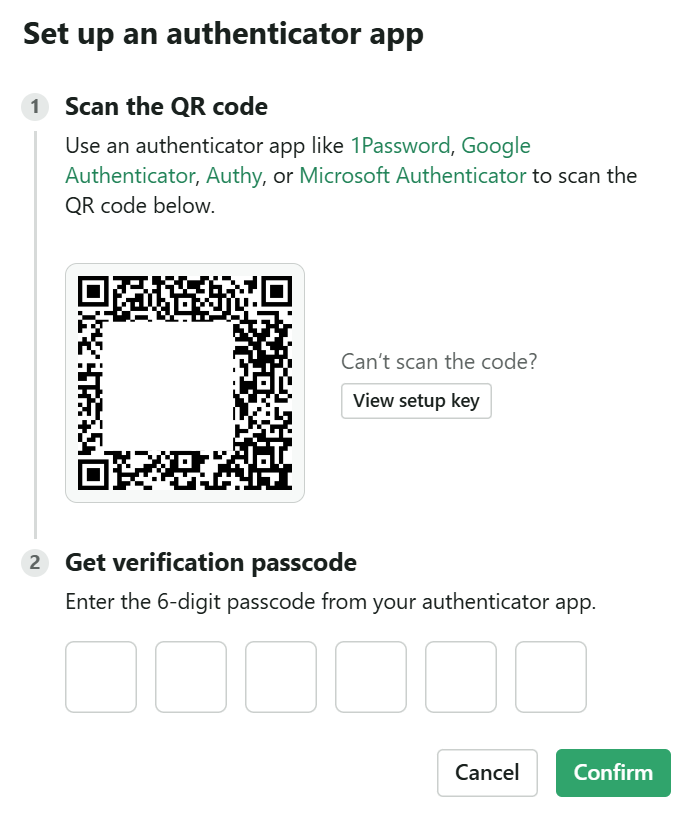
MFA is now available for everyone and uses standard authentication apps (e.g., Google Authenticator, Authy) instead of SMS. Workspace admins can require MFA for all users.
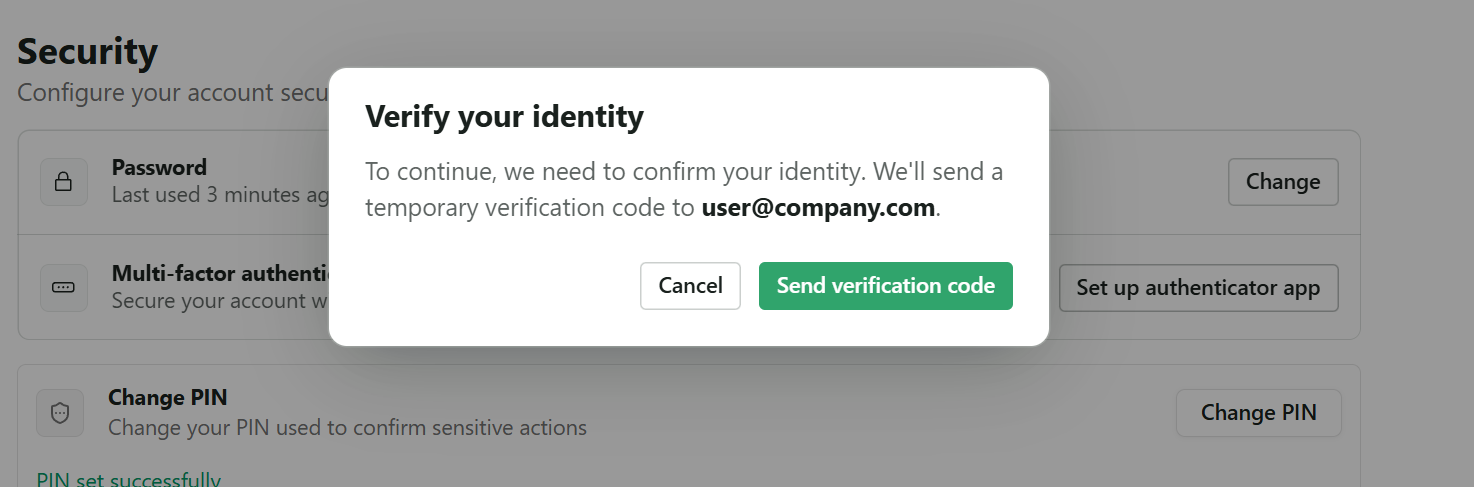
- Go to your profile and under "Multi-factor authentication" and click "Set up authenticator app"
- Check your E-Mail for the Code and enter it.
- Scan the QR code using your authentication app, then enter the code generated to confirm setup.
- If your admin has made MFA mandatory, you will be guided through this process at first login.
5. Enhanced Admin Controls
Workspace administrators can enforce MFA for all users, manage Single Sign-On (SSO) settings, and incorporate new authentication options according to company policies.
- Enforce mandatory MFA or leave as optional, as fits your risk profile.
- Integrate additional SSO providers as they become supported.
6. What’s Next?
This upgrade sets the stage for ongoing improvements. You can expect:
- Advanced access management and role-based rights (coming soon)
- Wider SSO support if your organisation uses other providers
- User sessions will be available for longer, so we won't automatically log-off after 30mins of inactivity.
7. Privacy & Data Security
- If you use SSO, meddevo no longer manages your password at all - your company does.
- If you use email and password, meddevo stores your credentials securely.
For more info about our partner authentication platform or data protection practices, see the FAQ below.
FAQ | Technical Details
I invited a colleague to meddevo but they didn´t receive an email! Currently the email notification is in rework. Your users will not automatically receive an invite, you have to inform your colleagues personally. Please ask them to follow the steps described at the top of this page in "1. Password Reset Required"
Who provides authentication? Authentication is powered by an industry-standard platform (WorkOS). This enables SSO, multi-factor authentication, and robust compliance. For details see WorkOS Security.
Will my account or data be affected? No - your data, permissions, and workflows are not changed. Just complete the new login and PIN steps to continue as usual.
Are there changes for integrations and APIs? Potential changes to API and integration login - details will always be communicated before any required action. Existing Access Tokens stay valid.
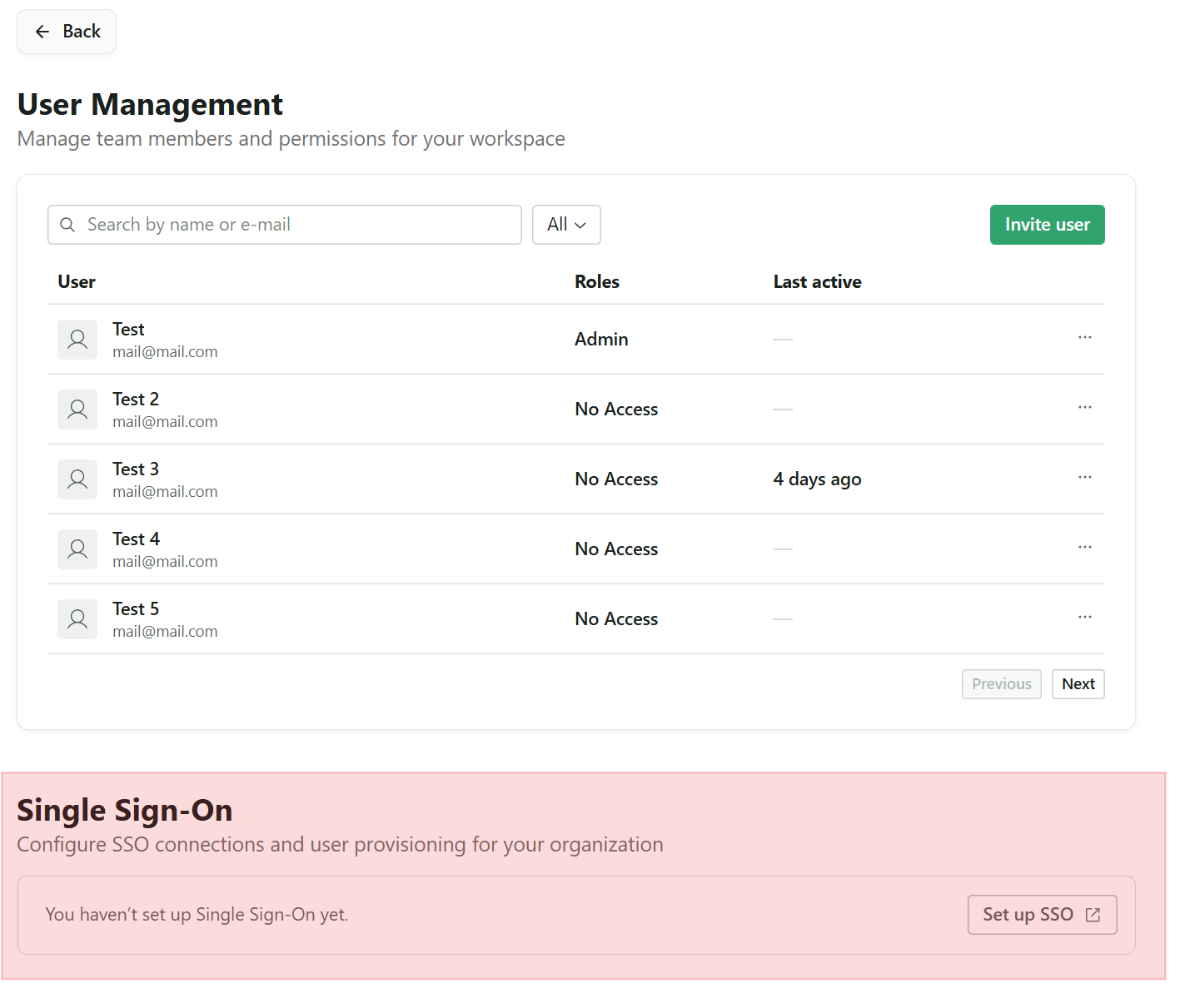
How can I enable SSO on my workspace? This feature must be enabled for your workspace. If you require this, please contact our support team. If enabled, users with the Admin role should see a Single Sign-On section under User Management. Click on 'Set up SSO' and follow the instructions.
For any other questions, contact support or your workspace admin.